> ## Documentation Index
> Fetch the complete documentation index at: https://docs.fluso.ai/llms.txt
> Use this file to discover all available pages before exploring further.
# MCP servers
> Reach anything Fluso doesn't already connect to natively. Paste a URL, sign in, use the tools.
MCP servers are how Fluso reaches services it doesn't already have a [connector](/features/connectors) for. Anything that speaks the Model Context Protocol counts. A team's private MCP, a smaller SaaS that shipped an MCP endpoint but isn't in the connector catalog, a new tool a developer threw up over the weekend.
You paste the URL. Fluso handles the sign-in. From the next message on, every chat can use the new tools, and Fluso picks the right one without you having to name it.
If a service is already in [Connectors](/features/connectors), use that. It's vetted, the scopes are tuned, and you skip a step. MCP is for everything else.
Looking to connect to third party? Use this redirect URL: [https://api.fluso.ai/v1/mcp-oauth/callback](https://api.fluso.ai/v1/mcp-oauth/callback)
## How it works
When you connect a server, Fluso checks what kind of sign-in it uses, asks you for exactly that, and stores the result encrypted on the backend. Sign-in happens in a popup on the server's own login page, like Gmail or Slack. After that, the runtime fetches a fresh token from the backend whenever a tool needs one.
You don't run a tunnel. You don't paste secrets into a config file. You don't configure a callback URL.
## Two ways to connect
You can add a server from the dedicated MCP tab, or by asking in chat.
**The MCP tab.** Open **Customization** in the left sidebar, then the **MCP** tab. Click **Add MCP server**, paste a URL, click through the dialog, done. Use this when you already know the URL.
**Chat.** Ask Fluso to *"connect to Linear MCP"*, or paste a docs page and let it figure out the endpoint. The same sign-in card shows up inline in the conversation. Use this when you're not sure the service even has an MCP endpoint.
Both paths land at the same place. A server added in chat shows up in the MCP tab. A server added in the MCP tab is usable in chat from the next message on.
## Where to find them
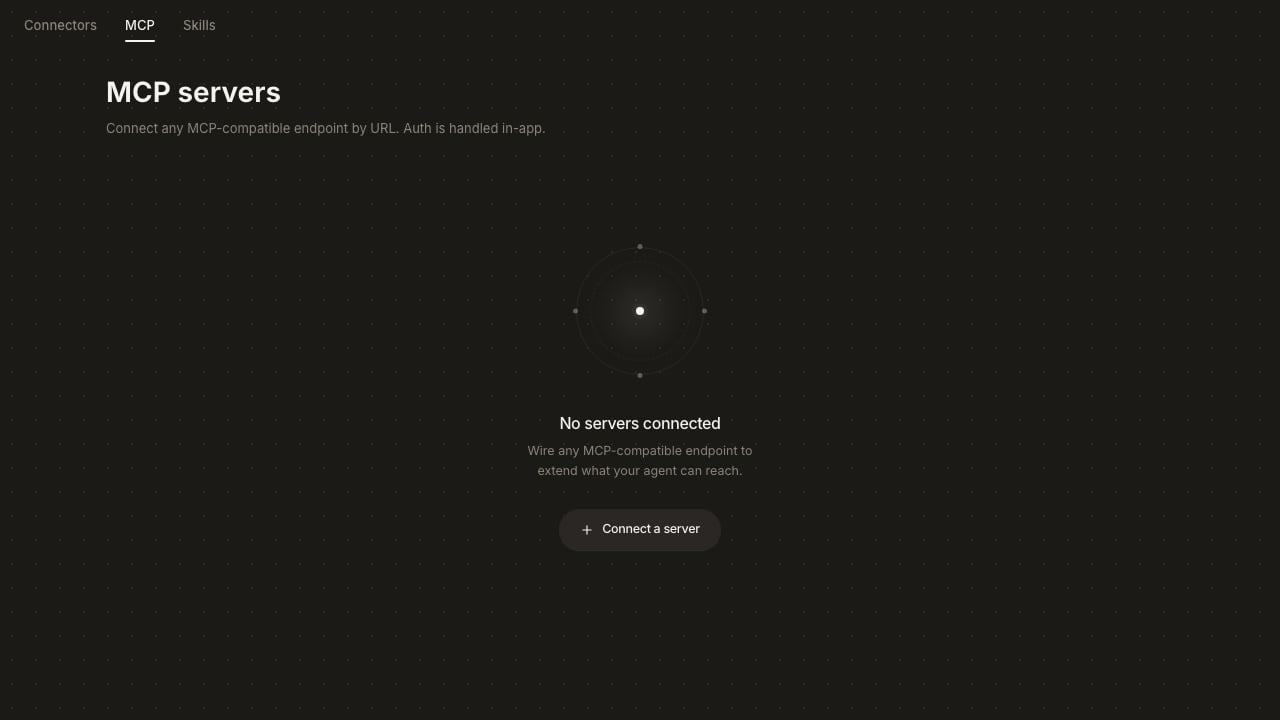 Every server connected to this workspace shows up under **Customization → MCP**, with status and tool count. When the list is empty, the page centers a single **Connect a server** button. Once you have a few servers, the page switches to the list view shown below, with **Add MCP server** at the top right.
## Adding a server
Click **Connect a server** (or **Add MCP server**, once you have any connected). A dialog opens.
Every server connected to this workspace shows up under **Customization → MCP**, with status and tool count. When the list is empty, the page centers a single **Connect a server** button. Once you have a few servers, the page switches to the list view shown below, with **Add MCP server** at the top right.
## Adding a server
Click **Connect a server** (or **Add MCP server**, once you have any connected). A dialog opens.
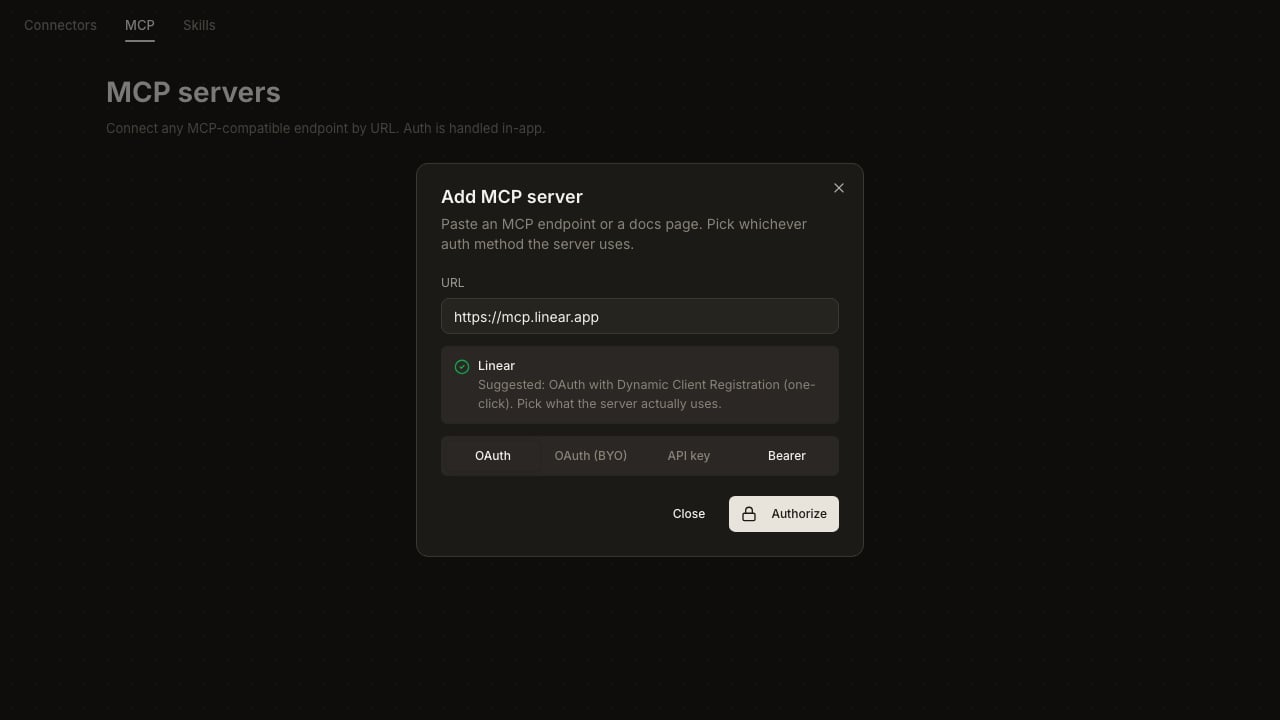 Paste the URL of the MCP endpoint, or the docs page that documents it. Click **Continue**.
Fluso probes the URL. It doesn't send any credentials. It just reads the server's public sign-in metadata to figure out what kind of auth it advertises. The result shows up as a **suggestion**, not a verdict.
Below the suggestion, four tabs let you pick the actual auth method.
### OAuth
The one-click case. The server supports OAuth 2.1 with Dynamic Client Registration. Fluso registers itself on the fly and shows you a single **Authorize** button. Click it. A popup opens on the server's own sign-in page. Approve. The popup closes. The row appears in the list.
This is what Linear, Notion, Asana, Atlassian, Sentry, Cloudflare, and most modern MCP servers look like.
### OAuth (BYO)
OAuth, but the server doesn't let Fluso register itself. You go to the server's developer console, register an app yourself, and bring the credentials back.
Paste the URL of the MCP endpoint, or the docs page that documents it. Click **Continue**.
Fluso probes the URL. It doesn't send any credentials. It just reads the server's public sign-in metadata to figure out what kind of auth it advertises. The result shows up as a **suggestion**, not a verdict.
Below the suggestion, four tabs let you pick the actual auth method.
### OAuth
The one-click case. The server supports OAuth 2.1 with Dynamic Client Registration. Fluso registers itself on the fly and shows you a single **Authorize** button. Click it. A popup opens on the server's own sign-in page. Approve. The popup closes. The row appears in the list.
This is what Linear, Notion, Asana, Atlassian, Sentry, Cloudflare, and most modern MCP servers look like.
### OAuth (BYO)
OAuth, but the server doesn't let Fluso register itself. You go to the server's developer console, register an app yourself, and bring the credentials back.
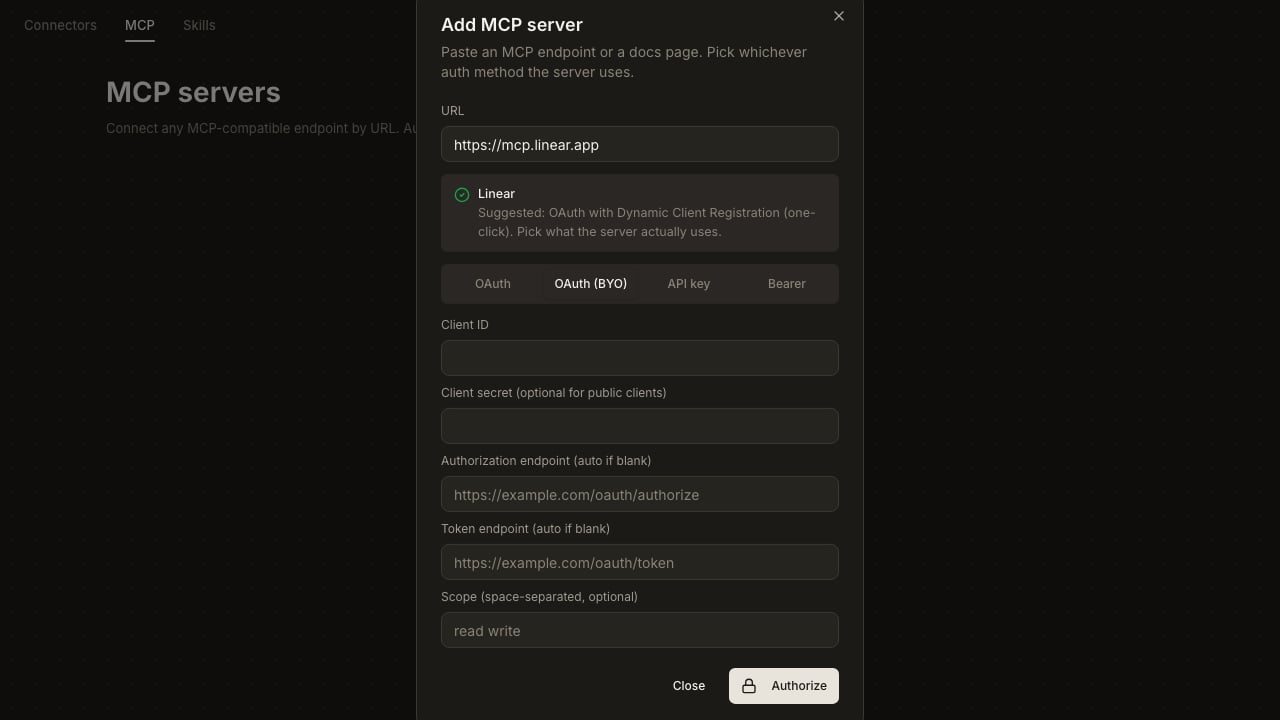 Client ID and Client secret go where they say. Authorization and token endpoints are auto-detected if you leave them blank. Click **Authorize** and the rest of the flow is the same as the OAuth tab.
Set the redirect URI on the provider's side to the one Fluso shows you in the dialog.
### API key
The server has no OAuth. It expects a key in an HTTP header.
Client ID and Client secret go where they say. Authorization and token endpoints are auto-detected if you leave them blank. Click **Authorize** and the rest of the flow is the same as the OAuth tab.
Set the redirect URI on the provider's side to the one Fluso shows you in the dialog.
### API key
The server has no OAuth. It expects a key in an HTTP header.
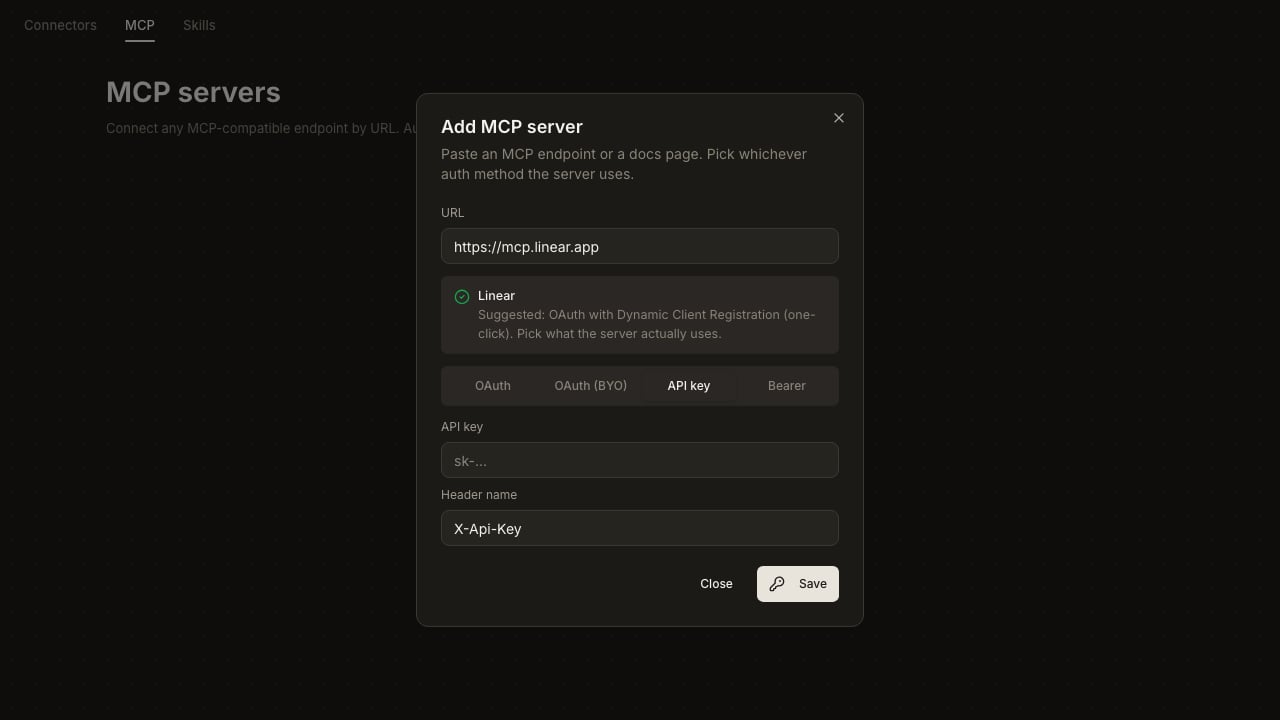 Paste the key. The header name defaults to `X-Api-Key`. Change it if your server uses something else. Click **Save**.
### Bearer
A bearer token, sent as `Authorization: Bearer `.
Paste the key. The header name defaults to `X-Api-Key`. Change it if your server uses something else. Click **Save**.
### Bearer
A bearer token, sent as `Authorization: Bearer `.
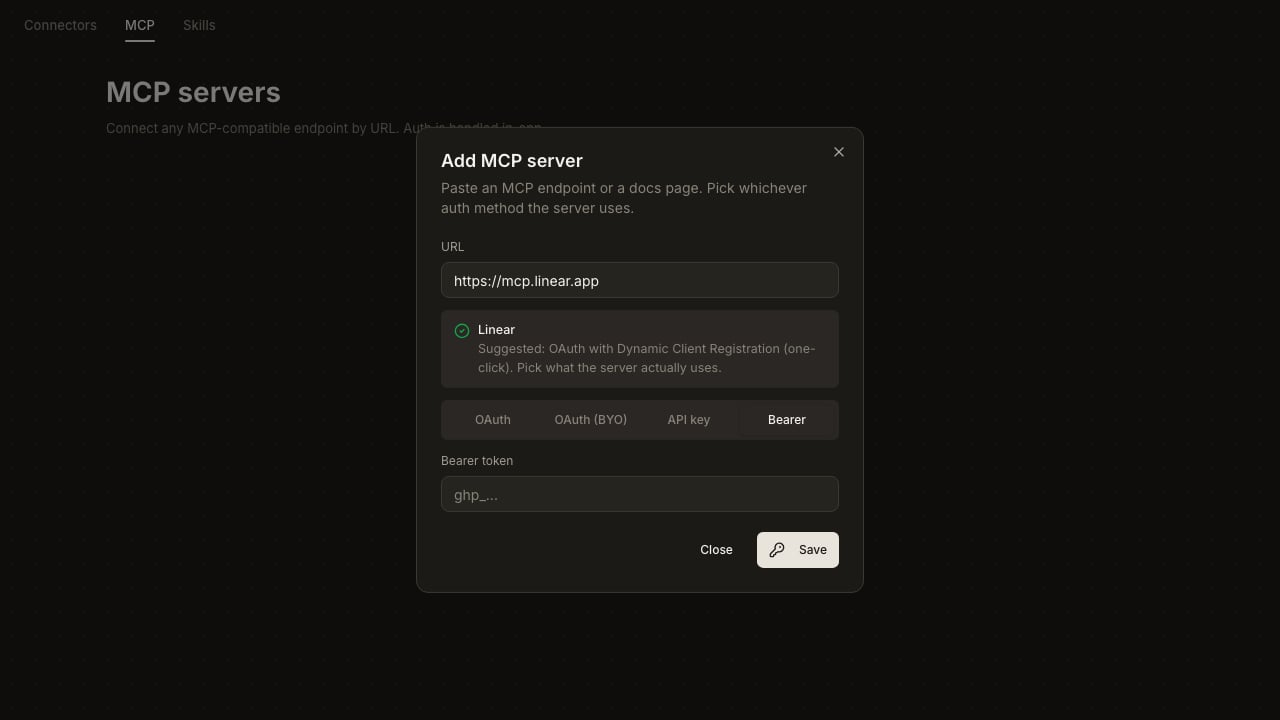 Paste the token. Click **Save**. Useful for servers that expect a static GitHub-style PAT or a long-lived service token.
Whatever you paste goes straight to the backend over HTTPS and is stored encrypted at rest, the same way OAuth tokens are. It never sits in the browser. It doesn't appear in logs.
## Signing in
For the OAuth tabs, **Authorize** opens a popup on the server's sign-in page.
Paste the token. Click **Save**. Useful for servers that expect a static GitHub-style PAT or a long-lived service token.
Whatever you paste goes straight to the backend over HTTPS and is stored encrypted at rest, the same way OAuth tokens are. It never sits in the browser. It doesn't appear in logs.
## Signing in
For the OAuth tabs, **Authorize** opens a popup on the server's sign-in page.
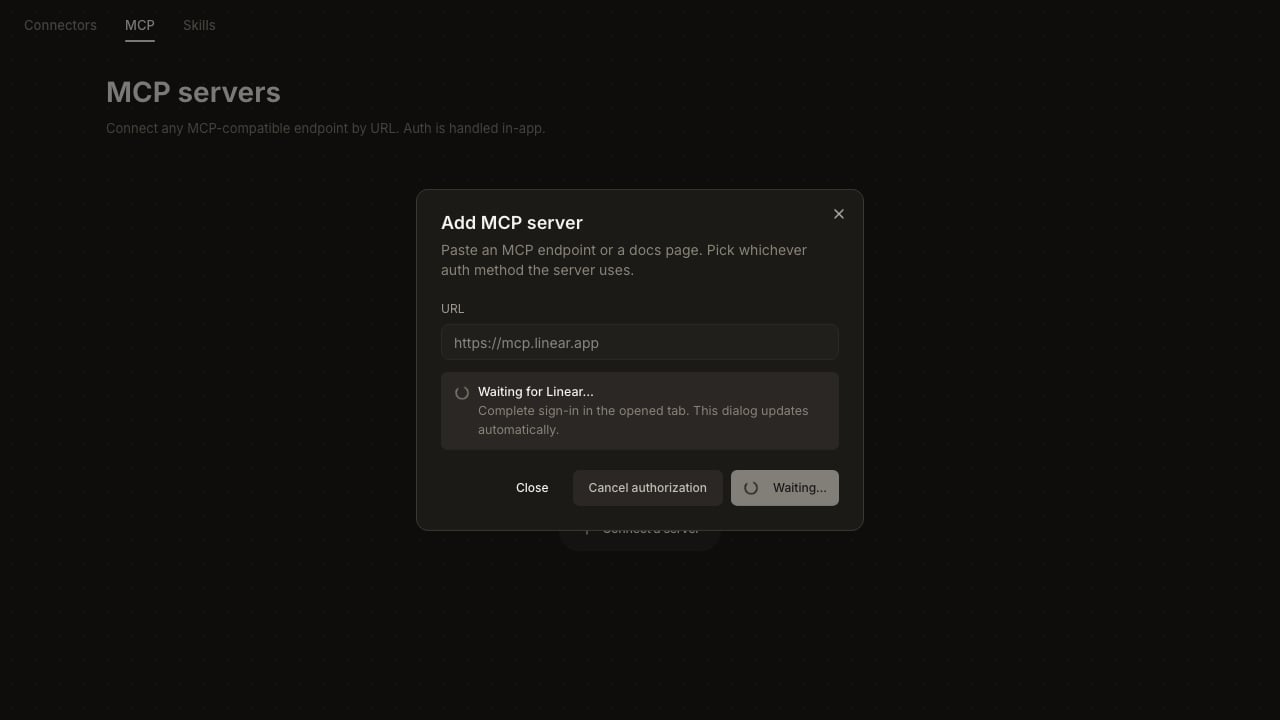 Sign in there. The popup briefly lands on a Fluso confirmation page before closing itself.
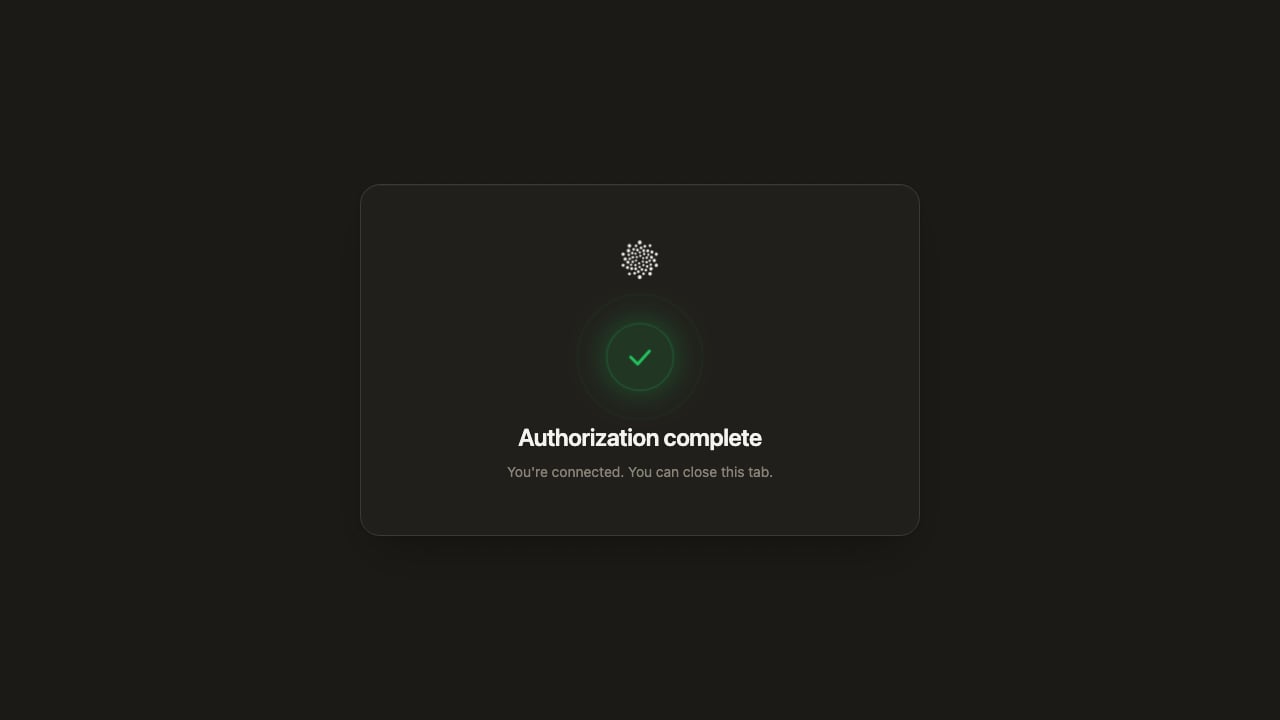 The dialog in the main tab flips to the connected state without you having to refresh.
Take your time. The pending session holds for 15 minutes. After that it expires and the same page reports the failure:
The dialog in the main tab flips to the connected state without you having to refresh.
Take your time. The pending session holds for 15 minutes. After that it expires and the same page reports the failure:
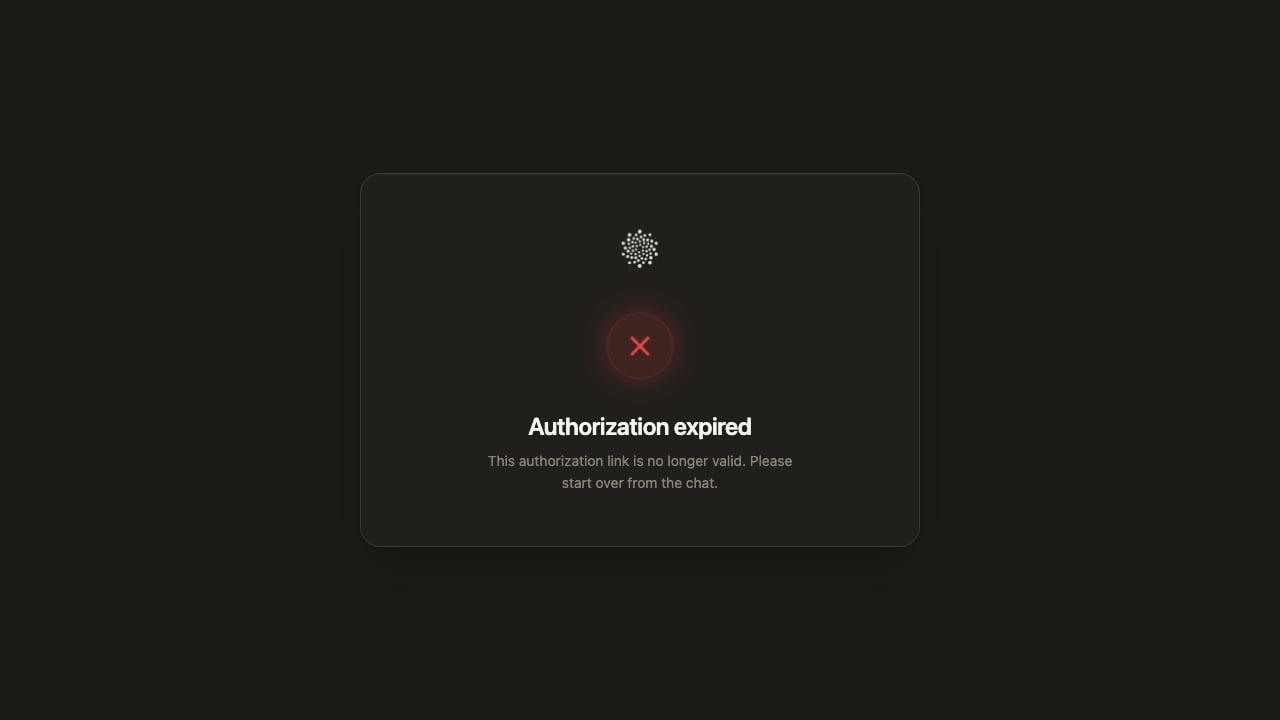 If your browser blocks the popup, allow popups for the Fluso domain and click **Authorize** again. If you close the popup before signing in, Fluso notices and lets you retry from the same dialog.
## Managing connections
If your browser blocks the popup, allow popups for the Fluso domain and click **Authorize** again. If you close the popup before signing in, Fluso notices and lets you retry from the same dialog.
## Managing connections
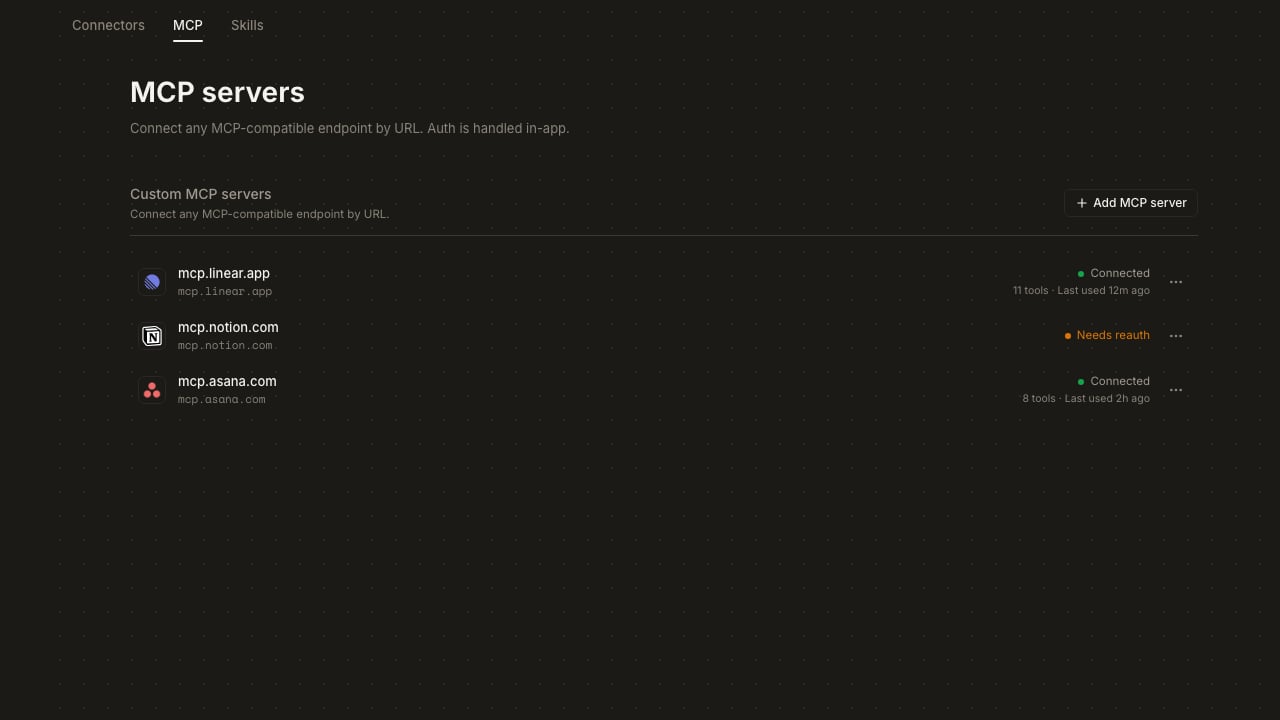 Every connected server shows up as a row with the server's favicon, the endpoint, status, tool count, and a last-used timestamp.
**Connected.** Fluso has a current sign-in. Tokens that are close to expiring get refreshed in the background. You don't see this happen.
**Needs reauth.** The token expired and Fluso couldn't refresh it. The server probably revoked the refresh token or rotated keys. Hit the three-dot menu and click **Reconnect**.
Every connected server shows up as a row with the server's favicon, the endpoint, status, tool count, and a last-used timestamp.
**Connected.** Fluso has a current sign-in. Tokens that are close to expiring get refreshed in the background. You don't see this happen.
**Needs reauth.** The token expired and Fluso couldn't refresh it. The server probably revoked the refresh token or rotated keys. Hit the three-dot menu and click **Reconnect**.
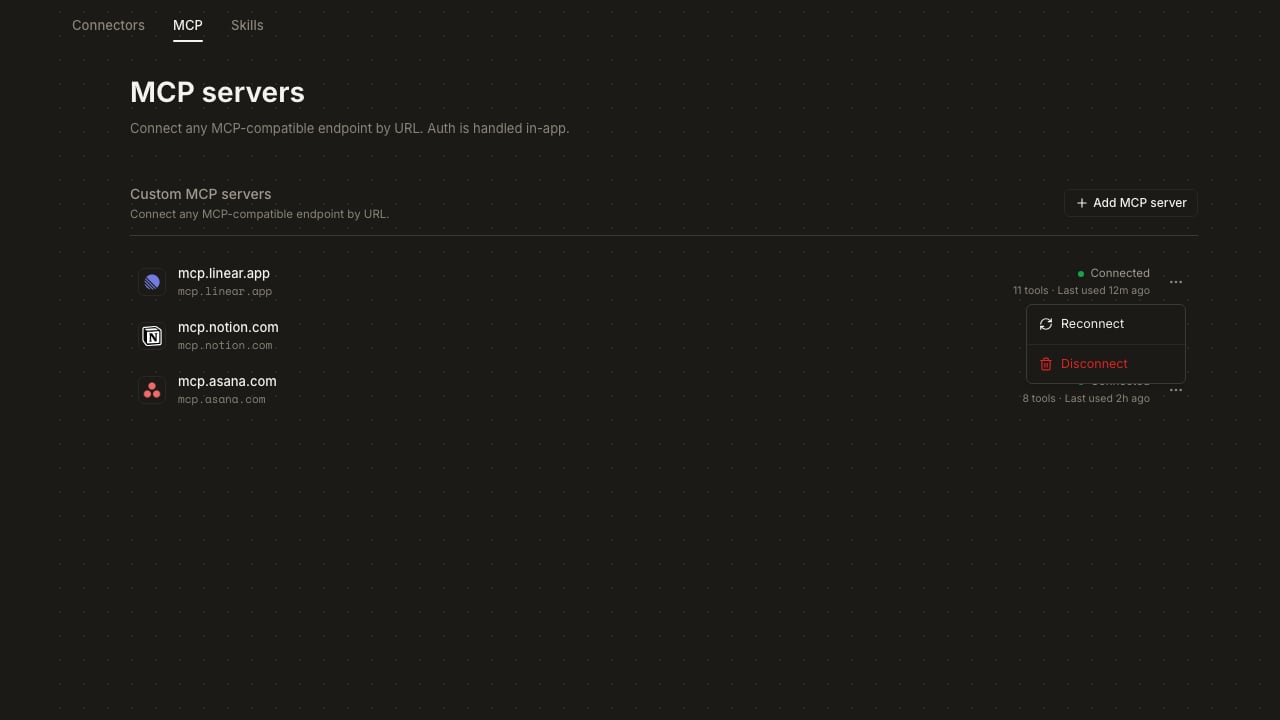 **Reconnect** drops the stored sign-in first, then re-opens the Add dialog with the URL filled in. Use it after a **Needs reauth**, or when you want to sign in as a different account on the same server.
**Disconnect** opens a confirmation:
**Reconnect** drops the stored sign-in first, then re-opens the Add dialog with the URL filled in. Use it after a **Needs reauth**, or when you want to sign in as a different account on the same server.
**Disconnect** opens a confirmation:
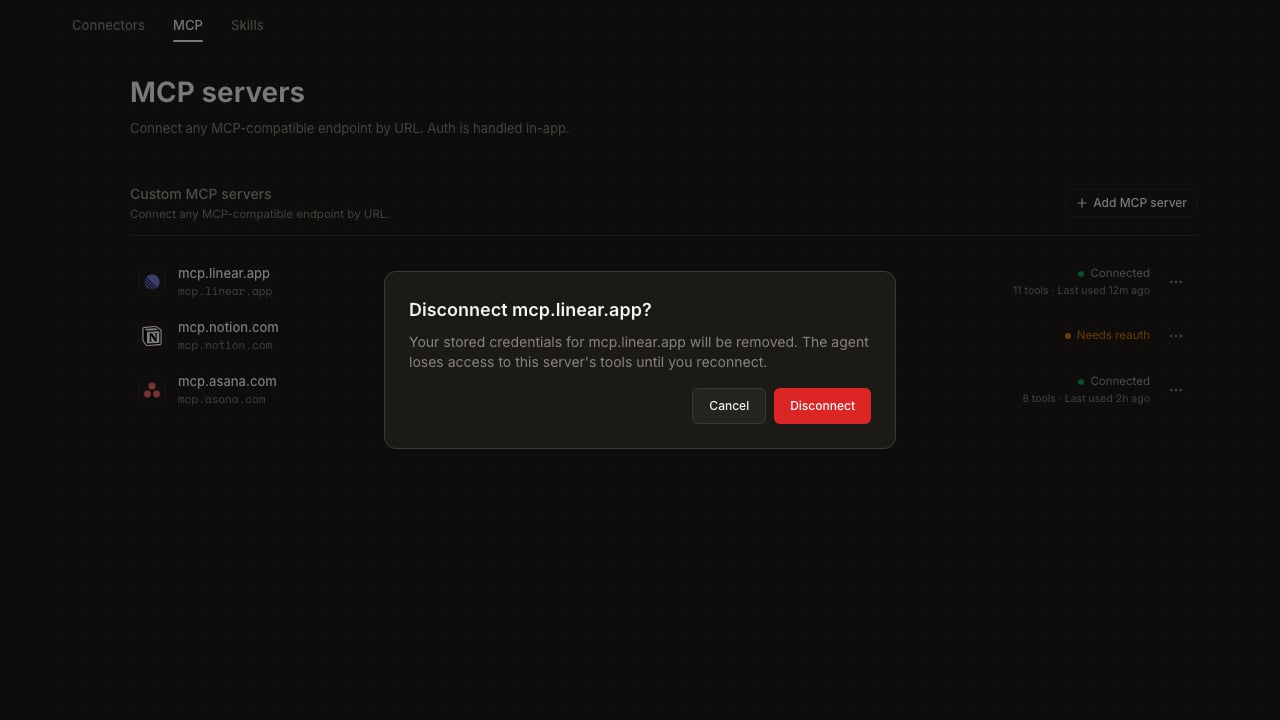 Confirm and the row is removed. Fluso loses access from the next message on. This only removes the sign-in from Fluso's side. To revoke it on the server, do that from the server's own settings page. Most providers list "Fluso MCP Proxy" as an authorized application you can remove.
## Connection lifecycle
MCP connections live in the backend, not in the chat or the agent's runtime sandbox. That has a few consequences worth knowing.
**Connections are per account, not per session.** Sign in once on any device. The connection is there in every new chat, on every other device you sign in to Fluso from, and it survives if we restart your runtime sandbox in the background.
**The sandbox is ephemeral. Your connections aren't.** Each chat runs in a per-user sandbox that we recycle on deploys, on long idles, or if it crashes. When a fresh sandbox starts, the agent asks the backend for your connected servers and rebuilds its workspace config files. No re-authorization. Mid-chat sandbox restarts are invisible to you.
**The runtime never stores tokens.** Tools call the backend for a short-lived access token per request, use it, drop it. Even if a sandbox were compromised, the on-disk state is config (URLs, server IDs, scopes), not secrets.
**Tokens refresh in the background.** While a connection is **Connected**, Fluso renews tokens before they expire. You only see this when refresh fails, which is what flips the row to **Needs reauth**.
**Disconnect is immediate.** From the next message on, no agent in any chat or sandbox can call that server's tools. The row, the workspace config, and the stored token all go away.
## Adding a server from chat
If you don't know whether a service has an MCP endpoint, don't go hunting. Ask Fluso.
> *"Connect to Linear MCP."*
> *"Set this up: [https://developers.asana.com/docs/mcp](https://developers.asana.com/docs/mcp)."*
Fluso reads whatever docs you point it at, finds the endpoint, and surfaces the same sign-in card right in the chat. The green check, the popup, the automatic wait, all of it. You sign in. The card flips to **Connected**. Fluso carries on with whatever you actually asked for.
Servers added in chat show up in the MCP tab. Servers added in the MCP tab are usable from chat. One list, two ways in.
## When a service is both an MCP and a connector
You can connect Linear as a connector and as an MCP server. You can connect both. When both exist, **the MCP server wins**. Fluso uses MCP tools first and falls back to the connector only if the MCP can't satisfy a request.
This is deliberate. A custom MCP you set up is almost always more specific to your workflow than a generic connector. If you find yourself preferring the connector's behavior, disconnect the MCP server.
The same rule applies in reverse for capabilities. If a connected MCP server covers what a connector would do, Fluso won't ask you to add the connector. The MCP is enough.
## Troubleshooting
Sign-in took longer than 15 minutes. Close the popup, click **Authorize** again.
You clicked **Authorize** twice for the same server. Finish the flow in the newer popup, close this one.
The URL is probably the docs page, not the MCP endpoint. Try `mcp..com` or `.com/mcp`.
The server returned a sign-in Fluso can't use. Disconnect the row and add the server fresh.
Working as intended. The public app can't point at internal IPs. Expose the server publicly behind its own auth, or run Fluso against a backend that can reach it.
Something is wrong with the runtime's connection to the backend. Reach out to support.
Usually one of: you denied consent, the server's app config is broken, the scopes don't match the account you signed in with. Check the server's docs.
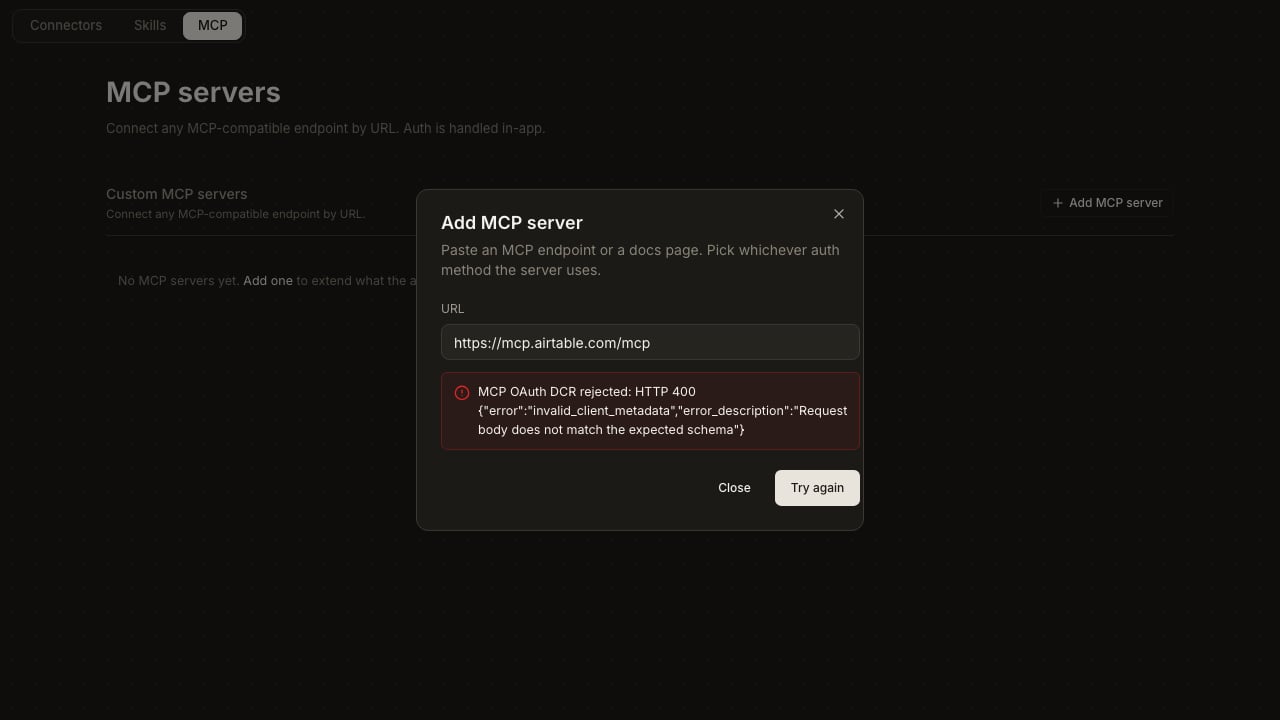
The server advertises Dynamic Client Registration but rejected Fluso. Click **Try again**, or switch to **OAuth (BYO)** and register an app yourself.
Confirm and the row is removed. Fluso loses access from the next message on. This only removes the sign-in from Fluso's side. To revoke it on the server, do that from the server's own settings page. Most providers list "Fluso MCP Proxy" as an authorized application you can remove.
## Connection lifecycle
MCP connections live in the backend, not in the chat or the agent's runtime sandbox. That has a few consequences worth knowing.
**Connections are per account, not per session.** Sign in once on any device. The connection is there in every new chat, on every other device you sign in to Fluso from, and it survives if we restart your runtime sandbox in the background.
**The sandbox is ephemeral. Your connections aren't.** Each chat runs in a per-user sandbox that we recycle on deploys, on long idles, or if it crashes. When a fresh sandbox starts, the agent asks the backend for your connected servers and rebuilds its workspace config files. No re-authorization. Mid-chat sandbox restarts are invisible to you.
**The runtime never stores tokens.** Tools call the backend for a short-lived access token per request, use it, drop it. Even if a sandbox were compromised, the on-disk state is config (URLs, server IDs, scopes), not secrets.
**Tokens refresh in the background.** While a connection is **Connected**, Fluso renews tokens before they expire. You only see this when refresh fails, which is what flips the row to **Needs reauth**.
**Disconnect is immediate.** From the next message on, no agent in any chat or sandbox can call that server's tools. The row, the workspace config, and the stored token all go away.
## Adding a server from chat
If you don't know whether a service has an MCP endpoint, don't go hunting. Ask Fluso.
> *"Connect to Linear MCP."*
> *"Set this up: [https://developers.asana.com/docs/mcp](https://developers.asana.com/docs/mcp)."*
Fluso reads whatever docs you point it at, finds the endpoint, and surfaces the same sign-in card right in the chat. The green check, the popup, the automatic wait, all of it. You sign in. The card flips to **Connected**. Fluso carries on with whatever you actually asked for.
Servers added in chat show up in the MCP tab. Servers added in the MCP tab are usable from chat. One list, two ways in.
## When a service is both an MCP and a connector
You can connect Linear as a connector and as an MCP server. You can connect both. When both exist, **the MCP server wins**. Fluso uses MCP tools first and falls back to the connector only if the MCP can't satisfy a request.
This is deliberate. A custom MCP you set up is almost always more specific to your workflow than a generic connector. If you find yourself preferring the connector's behavior, disconnect the MCP server.
The same rule applies in reverse for capabilities. If a connected MCP server covers what a connector would do, Fluso won't ask you to add the connector. The MCP is enough.
## Troubleshooting
Sign-in took longer than 15 minutes. Close the popup, click **Authorize** again.
You clicked **Authorize** twice for the same server. Finish the flow in the newer popup, close this one.
The URL is probably the docs page, not the MCP endpoint. Try `mcp..com` or `.com/mcp`.
The server returned a sign-in Fluso can't use. Disconnect the row and add the server fresh.
Working as intended. The public app can't point at internal IPs. Expose the server publicly behind its own auth, or run Fluso against a backend that can reach it.
Something is wrong with the runtime's connection to the backend. Reach out to support.
Usually one of: you denied consent, the server's app config is broken, the scopes don't match the account you signed in with. Check the server's docs.
The server advertises Dynamic Client Registration but rejected Fluso. Click **Try again**, or switch to **OAuth (BYO)** and register an app yourself.
 ## Things to know
* **Any MCP server works.** Modern OAuth, OAuth without auto-registration, plain API keys, bearer tokens. Nothing gets blocked because of how the server handles sign-in.
* **All credentials are stored encrypted.** OAuth tokens, API keys, bearer tokens, client secrets. Never in logs. Never in plain text.
* **Sign-in is between you and the server.** Fluso never sees your password. The server hands back a token. That's what we keep.
* **Disconnect is local.** It removes Fluso's access on our side. To revoke it on the server too, do that from the server's settings.
MCP servers run tools on your behalf. Only connect ones you trust. A malicious server can advertise harmless-looking tools that do harmful things. Fluso doesn't sandbox tool calls.
## Next
See [Connectors](/features/connectors) for first-party integrations that don't need an MCP endpoint. See [Skills](/features/skills) for capabilities that shape *how* Fluso thinks, not *what* it can reach.
## Things to know
* **Any MCP server works.** Modern OAuth, OAuth without auto-registration, plain API keys, bearer tokens. Nothing gets blocked because of how the server handles sign-in.
* **All credentials are stored encrypted.** OAuth tokens, API keys, bearer tokens, client secrets. Never in logs. Never in plain text.
* **Sign-in is between you and the server.** Fluso never sees your password. The server hands back a token. That's what we keep.
* **Disconnect is local.** It removes Fluso's access on our side. To revoke it on the server too, do that from the server's settings.
MCP servers run tools on your behalf. Only connect ones you trust. A malicious server can advertise harmless-looking tools that do harmful things. Fluso doesn't sandbox tool calls.
## Next
See [Connectors](/features/connectors) for first-party integrations that don't need an MCP endpoint. See [Skills](/features/skills) for capabilities that shape *how* Fluso thinks, not *what* it can reach.