

Chat
How conversation with Fluso works. What happens when you send a message, how to ask well, and what you can do inside the chat.
Chat is the front door. You tell Fluso what to do in plain English, and it does the work. The window looks like a messenger. It isn't one.
What happens when you send a message
A small pause between hitting enter and seeing the first words come back. In that pause, Fluso gathers everything it has on the situation. The thread's history. Your project's memory. Your connected apps. The skills available. The files in scope. Your preferences. Then it picks tools and uses them. Sometimes one. Sometimes ten in a row.
Ask it to summarise your unread emails and create tasks from the actionable ones. Behind the scenes, it queries Gmail, finds twelve unread, reads the five that look like requests, drafts three tasks with deadlines, drops them into your task list, and writes a short summary. You see the summary. The work is already done.
Describe the outcome. Get the outcome. Review.
Model mode
Use the mode button in the composer to set how much reasoning Fluso spends on the current chat: Fast, Medium, or High. ⌘\ cycles through them.
Fast suits straightforward questions and small edits. Medium balances speed and reasoning. High spends more reasoning on difficult work. Composer has the full comparison.
The mode is chat-specific. Ordinary new chats start in Medium unless you switch them. Saved Agents take High or Fast from their setup.
This only affects the chat you are using in the app. Telegram has its own conversation mode: using /fast in Telegram does not change an app chat, and changing the app control does not change Telegram.
Approval mode
Use the access control beside the mode button to choose when Fluso asks before connector and MCP tool actions. It shows a hand for Ask me first and an open lock for Allow everything; ⌘⇧\ steps through them. A choice made here belongs to the current chat. Chats without an explicit choice follow your default in Settings. Before a new chat exists, a selected mode remains pending until you send the first message.
See Approvals and permissions for the modes, in-chat approval cards, saved tool rules, and organization policy behavior.
Asking for things well
Two things matter more than anything else.
Specifics beat generalities. "Help with email" isn't a request. "Summarise my unread emails and tell me which need a reply today" is. Fluso will do both. The first comes back with a clarifying question. The second comes back with a list.
Outcomes, not steps. You don't need to instruct Fluso the way you'd instruct a junior. "Search Gmail for messages from Sarah, read them, then tell me what she wants" is what a robot would type. "What did Sarah email me about?" is what a person would say. Both work. The second is faster.
Threads
A thread is one conversation. It remembers what you've said and what Fluso has said back, so a follow-up prompt picks up where you left off. After Fluso summarises your inbox, "reply to the one from Legal" makes sense because the summary is still in context.
Start a new thread when you switch topic. Use the new-chat control in the sidebar. Old threads remain available to reopen. Long histories may be compacted into a summary for the model; the saved conversation remains readable.
Saved Agents work differently: selecting an Agent returns to its continuing main conversation. Its Manager refines the setup, and it can delegate independent work to sessions.
Things you can do inside chat
Speak instead of typing. Tap the microphone in the input bar and dictate your request. Useful between meetings, on a walk, or whenever your hands are busy.
Attach a file. Drag a PDF in and ask for a summary. Drop in an image and ask what's in the chart. Hand it a CSV and tell it to make a deck from the data. Files Fluso creates appear as attachments in the reply.
Work with files in your workspace. Read a report, write a markdown file, append to an existing one.
Use any connected app as part of an answer. Pull the latest message from Sarah, search for a Slack thread, list open PRs that need review.
While Fluso is working
The composer stays live during a run. Press Enter and your message joins a visible queue above it. Tab keeps its normal focus-navigation behavior. The square Stop button remains available even when the composer contains text.
Queuing follow-ups
Queued follow-ups wait above the composer and run in order once the current run finishes, each as its own request, exactly once. The queue lives on the server: reload the app or switch devices and it is still there. Attachments queue along with the text.
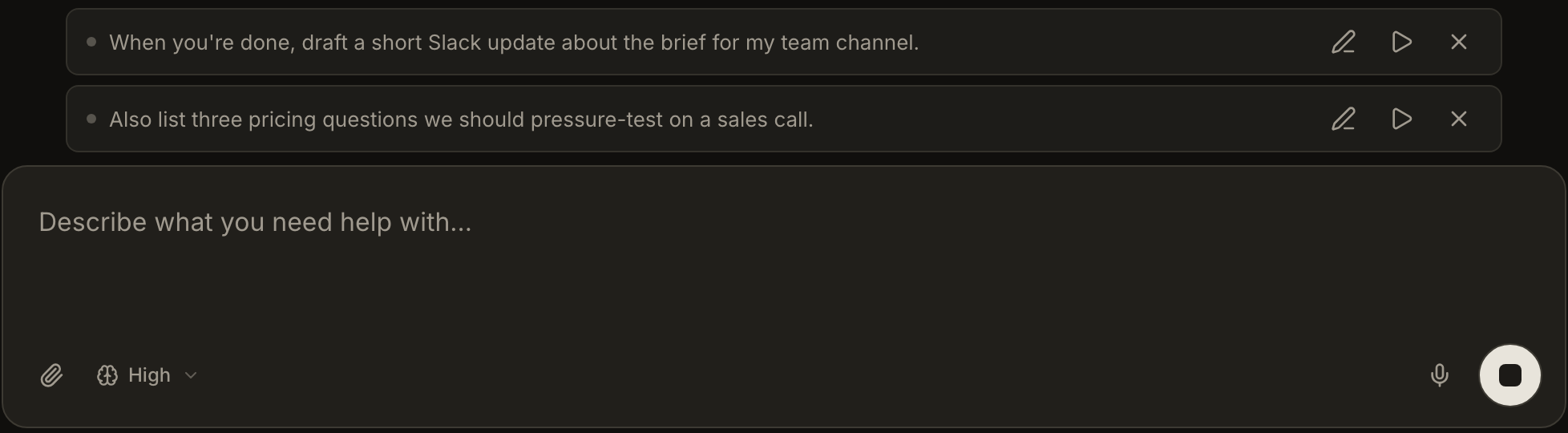
To steer the run in progress, queue the message, then click Send now (the play button) on its row. Fluso sends it into the live run immediately, or starts it as a new request if the run has already finished. Edit (the pencil) lets you rewrite the message first; Cancel (the cross) removes it.
For an Agent, a message submitted with a changed saved setup shows Saved setup applies next turn instead of Send now while the older turn runs. Edit and Cancel remain available.
Two safeguards worth knowing. If a follow-up starts while you are still editing it, the save is refused with a notice and your text stays in the composer — nothing sends twice. And if a follow-up cannot reach the server, the row is marked failed with a retry, not silently dropped.
Stopping pauses the queue
Stop the run with the square button and messages you queued pause. The same happens if the run fails. Paused follow-ups never start on their own: Send now runs one, Edit rewrites it first, Cancel clears it. Routine messages and returned session results do not receive this pause.

A few habits
- One topic per thread. Switching subjects mid-thread blurs the context Fluso uses. The cost of starting a new thread is zero.
- Switch into a project when you're working on something specific. Project context tightens the answers. Without it, Fluso draws on everything.
- Don't fight clarifying questions. If Fluso asks "Which project?" or "What format?", answer it. The back-and-forth is faster than guessing on its behalf.
Next
For the rest of the primitives, see Apps & MCP, Skills, Tasks, and Memory.