

Quickstart
Set up your first Fluso project, add useful context, connect your first tools, and run practical prompts.
This page takes you from a new Fluso workspace to your first useful result.
Start with one real project. Do not connect every tool or try every feature on day one. Pick a piece of work you already care about, give Fluso the context, and ask for something you can review.
What you'll do
In this quickstart, you will:
- Open Fluso and create one project.
- Add the files, notes, or connected tools that matter for that project.
- Ask a few practical prompts.
- Review the answer, sources, tasks, and drafts.
- Turn one useful prompt into a repeatable habit.
Before you start
Fluso runs on macOS. Download it from fluso.ai and install the app.
Windows and iOS are coming. For now, you need a Mac.
Pick one project before you open the app. Good first projects include:
- A launch you are planning.
- A client or account you manage.
- A research topic you need to summarise.
- A board update or investor update.
- A hiring process.
- A legal review.
- An operations handoff.
Have two or three pieces of context ready. That can be a document, a PDF, a spreadsheet, a meeting note, a Slack thread, an email thread, or a calendar event.
Step 1: open Fluso
Open the Fluso app and sign in.
You land in chat. This is where you ask for work, but do not start with a blank question yet. First, give Fluso a clear place to work.
Step 2: create your first project
Create a project for the work you picked.
Use a plain name:
Q3 launchAcme accountBoard updateHiring: head of salesContract review
A project gives Fluso a boundary. Files, memory, tasks, and drafts for that project stay connected to the same piece of work.
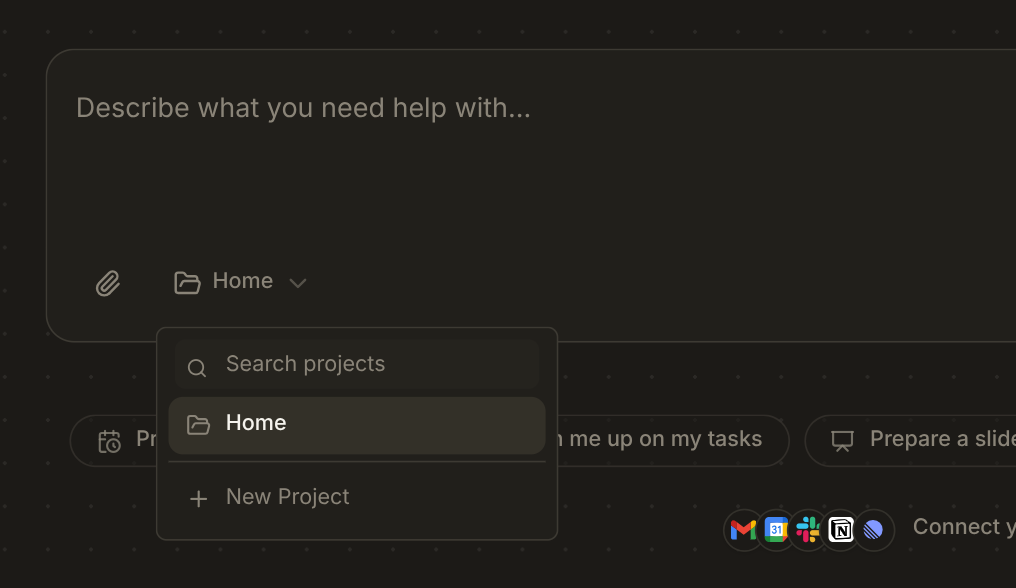
In the chat composer, click the folder picker (it reads Home by default) and choose + New Project.
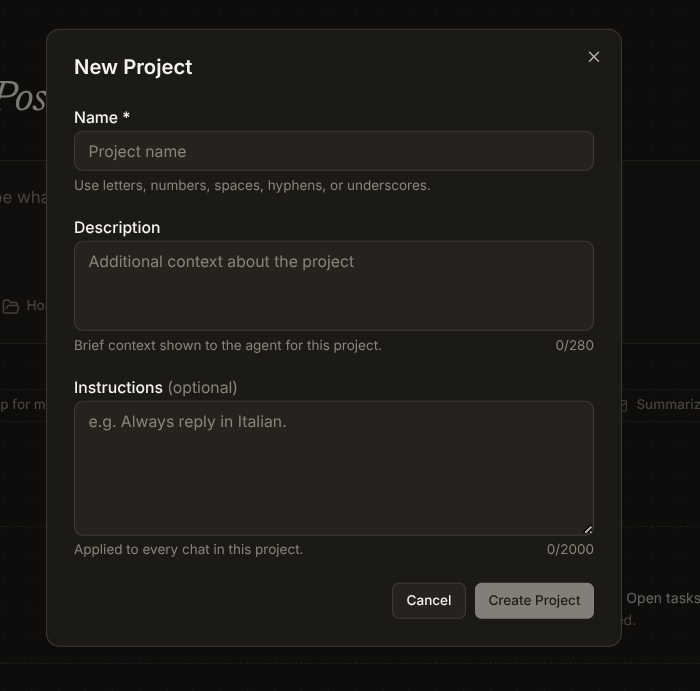
The New Project dialog opens. Give it a name. Description and Instructions are optional, but worth a moment:
- Description. A short note about what the project is for. Shown to Fluso as context for every chat in the project.
- Instructions. Anything you put here applies to every chat in this project. "Always reply in plain English, no bullet points", "Respond in Chinese", "Keep answers short" — that kind of standing rule.
Click Create Project.
Step 3: add context
Add the material Fluso should read for this project.
Start small. Add the files or notes you already have, then connect tools only when they make the project better.
For example:
- For a launch, add the launch plan, roadmap, positioning doc, and recent campaign notes.
- For a client account, add meeting notes, proposals, contract drafts, and recent email context.
- For a board update, add metrics, roadmap changes, customer notes, risks, and open decisions.
- For a legal review, add the contract, comments, and the email thread around the negotiation.
The first goal is not to organize everything. The first goal is to give Fluso enough context to produce one useful answer.
If that context already lives in ChatGPT, Claude, or another agent, use Imports instead of rebuilding the project by hand.
Step 4: connect one or two tools
Connect the tools that hold the project context.
Common starting points:
| If your work lives in... | Connect this first |
|---|---|
| Email and follow-ups | Gmail |
| Meetings and schedules | Google Calendar |
| Team conversations | Slack |
| Documents and files | Drive, Notion, Confluence, or Dropbox |
| Product and engineering work | Linear, Jira, GitHub, or Sheets |
You can connect more later. A few well-chosen connections are better than a long list you do not use.
For more detail, see Apps and MCP servers.
Step 5: ask your first prompt
Start with a prompt that asks Fluso to understand the project before it writes anything.
"Summarise this project. What is decided, what is still unclear, and what should I do next?"
Then ask for one useful output:
"Draft a one-page update from the latest files and threads. Keep it clear enough for a busy executive."
"Find the open questions and turn them into tasks with owners and deadlines where possible."
"Prepare me for the next meeting about this project. What changed since the last discussion?"
"Create a checklist for finishing this launch by Friday."
Good prompts name the outcome. Great prompts also name the audience, format, source material, and deadline.
Step 6: review the result
Read the answer like you would review work from a person.
Check:
- Does the summary match the source material?
- Did Fluso show where important claims came from?
- Are the tasks real, specific, and assigned to the right people?
- Are any drafts ready to send, or do they need edits?
- Is anything missing because you forgot to add a file or connect a tool?
If the answer is too broad, ask for a narrower version:
"Rewrite this as five bullets for my CEO."
"Show only risks, blockers, and decisions."
"Add source links for each claim."
"Turn this into a task list I can review today."
You do not have to wait for a run to finish before lining up more work. A message sent mid-run joins the follow-up queue; use Send now on its row when it needs to steer the current run. See While Fluso is working.
Step 7: make one habit
Once Fluso gives you one useful result, make that workflow repeatable.
Pick one:
- Morning brief: email, calendar, open tasks, and follow-ups.
- Meeting prep: attendees, last discussion, open questions, and likely topics.
- Meeting cleanup: recap, decisions, tasks, and follow-up drafts.
- Weekly update: progress, metrics, risks, decisions, and asks.
- Inbox triage: what needs action, what can wait, and what should be ignored.
Use the same wording for a few days. Fluso gets more useful when you use it on real recurring work.
First prompt cheat sheet
| Goal | Prompt |
|---|---|
| Understand a project | "Summarise this project. What is decided, blocked, and unclear?" |
| Prepare for a meeting | "Prep me for my next meeting. Who is attending, what happened last time, and what should I ask?" |
| Create tasks | "Find the action items in this thread and turn them into tasks." |
| Write an update | "Draft a one-page update for this project. Include progress, risks, decisions, and next steps." |
| Clean up a meeting | "Process this transcript. Give me a recap, decisions, tasks, and follow-up drafts." |
| Compare options | "Compare these options and recommend one. Show the evidence behind the recommendation." |
Common questions
Do I need to connect every app first?
No. Start with the tools that hold context for one project. You can add more later.
Should I start with a project or a general chat?
Start with a project. It gives Fluso a clearer boundary and makes the answer easier to review.
What if the answer is wrong or incomplete?
Add the missing source, ask for citations, or narrow the prompt. Fluso is most useful when it can see the same context you would use yourself.
Can Fluso send messages or updates for me?
Fluso can draft replies, updates, and follow-ups. Review drafts before anything goes out.
What should I try after this?
Run a morning brief for a few days, or process your next meeting. Those two workflows show the value fastest for most personal use.