

How it works
A connector is a saved authorisation. When you connect an app, you sign in on that app’s own login screen, approve the permissions Fluso asks for, and the app hands back a token. Fluso stores the token encrypted and uses it from then on whenever a request needs that app. You sign in once. The token persists across sessions. You do not paste API keys, you do not configure callback URLs, you do not share passwords.Where to find them
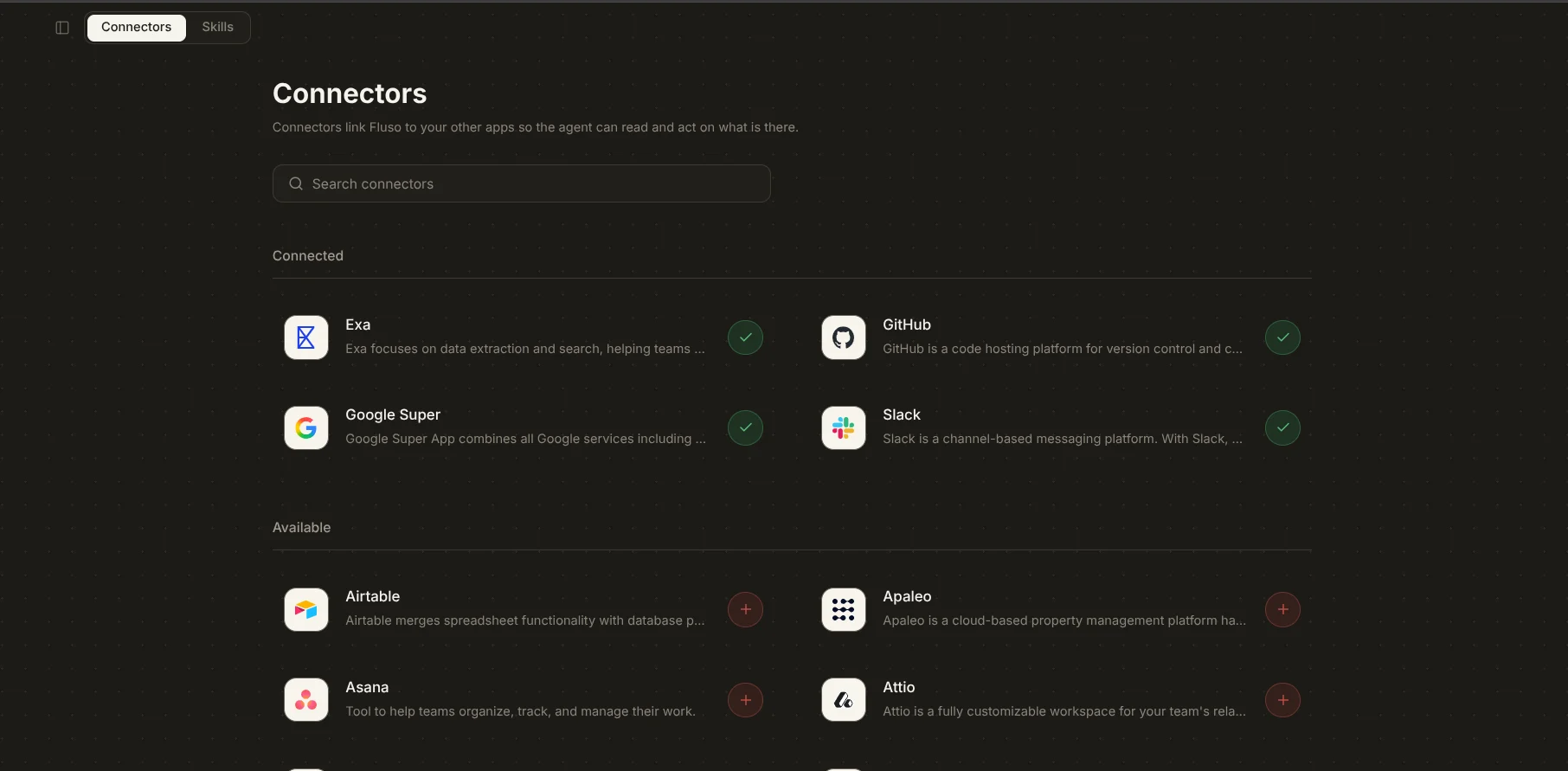
Connecting an app
Click the + on any row in Available. A small browser window opens with the app’s own login and permission screen. Sign in, review what Fluso is asking for, and approve. The window closes by itself. The app moves up into Connected with a green tick. Fluso can use it from the next message onward.Video — Short loop (5–8s): click + on an Available row, OAuth popup opens on the app’s own domain, approve permissions, popup closes by itself, the row moves up into Connected with a green tick.
Disconnecting an app
Click the green tick on a connected row. A small dialog asks you to confirm. Click Disconnect.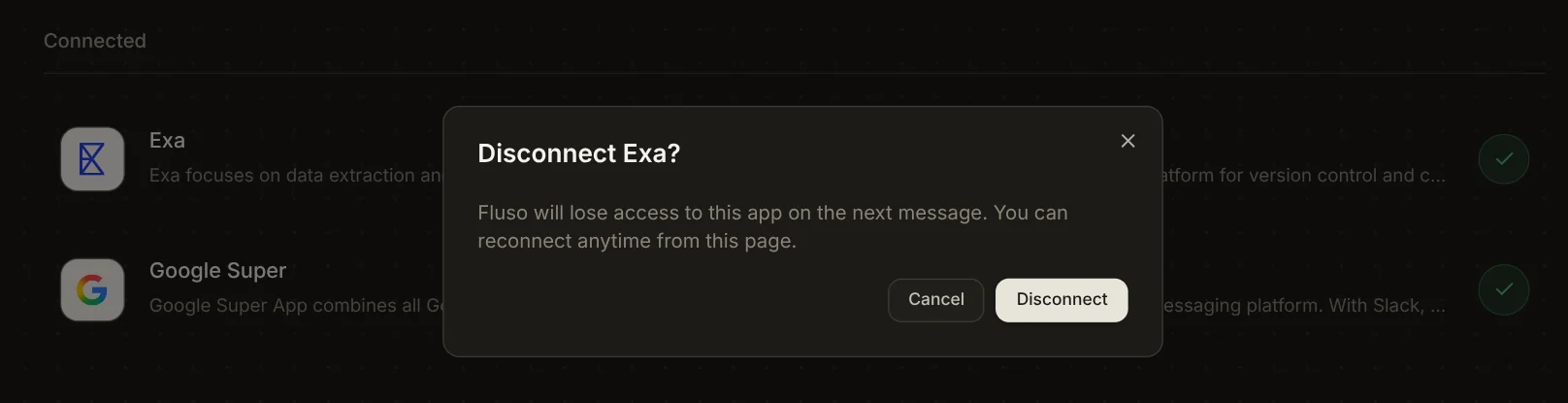
What changes after you connect
Reads happen freely. Writes wait for your approval. That pattern holds across every app. Once connected, Fluso can search, summarise, and pull context from the app whenever a chat needs it. It can also draft writes for you. Emails, Slack messages, calendar invites, pull requests. Every draft is shown for review before it goes. There is no auto-send mode.A handful that carry most days
Gmail, Calendar, and Drive activate together as one Google connector. Slack and GitHub each get their own.Gmail
Triage, summaries, search, drafts, auto-task extraction. Connect this first.
Google Calendar
Find time, schedule meetings, prep with full context.
Slack
Catch up on channels, search team history, post updates with approval.
GitHub
Codebase Q&A, PR review, scaffolding, bug fixes, issue management.
The wider catalog
Over a hundred apps are available out of the box, including:- Google services. Gmail, Calendar, and Drive bundled into one connector.
- Team chat. Slack, Microsoft Teams, Discord.
- Code. GitHub, GitLab, Bitbucket.
- Project and CRM. Linear, Jira, Asana, ClickUp, Attio, HubSpot, Salesforce, Capsule CRM.
- Docs and storage. Notion, Confluence, Dropbox, OneDrive, Box.
- Design. Figma, Canva.
- Payments and finance. Stripe, QuickBooks, Xero.
- Search. Exa.
Things to know
- Permissions are set at sign-in. Change scope by reconnecting, or in the source app’s own settings.
- Tokens are encrypted. Stored in a dedicated secrets manager. Never in logs, never in plain text.
- Disconnect anytime. Click the tick, confirm, and Fluso loses access from the next message. Reconnect from the same page when you need it back.
- Your tokens are yours alone. On Team plans, admins manage seats but cannot read your messages or files.