

Settings and app access
Choose what your Agent can use and how it should respond.
Open the Agent conversation's side panel with the panel icon at the upper right. Under Setup, Edit opens the saved fields. Refine with manager opens a conversation where you can describe the change.
For changes to its usual way of working, start with Improve your Agent.
Give it the tools it needs
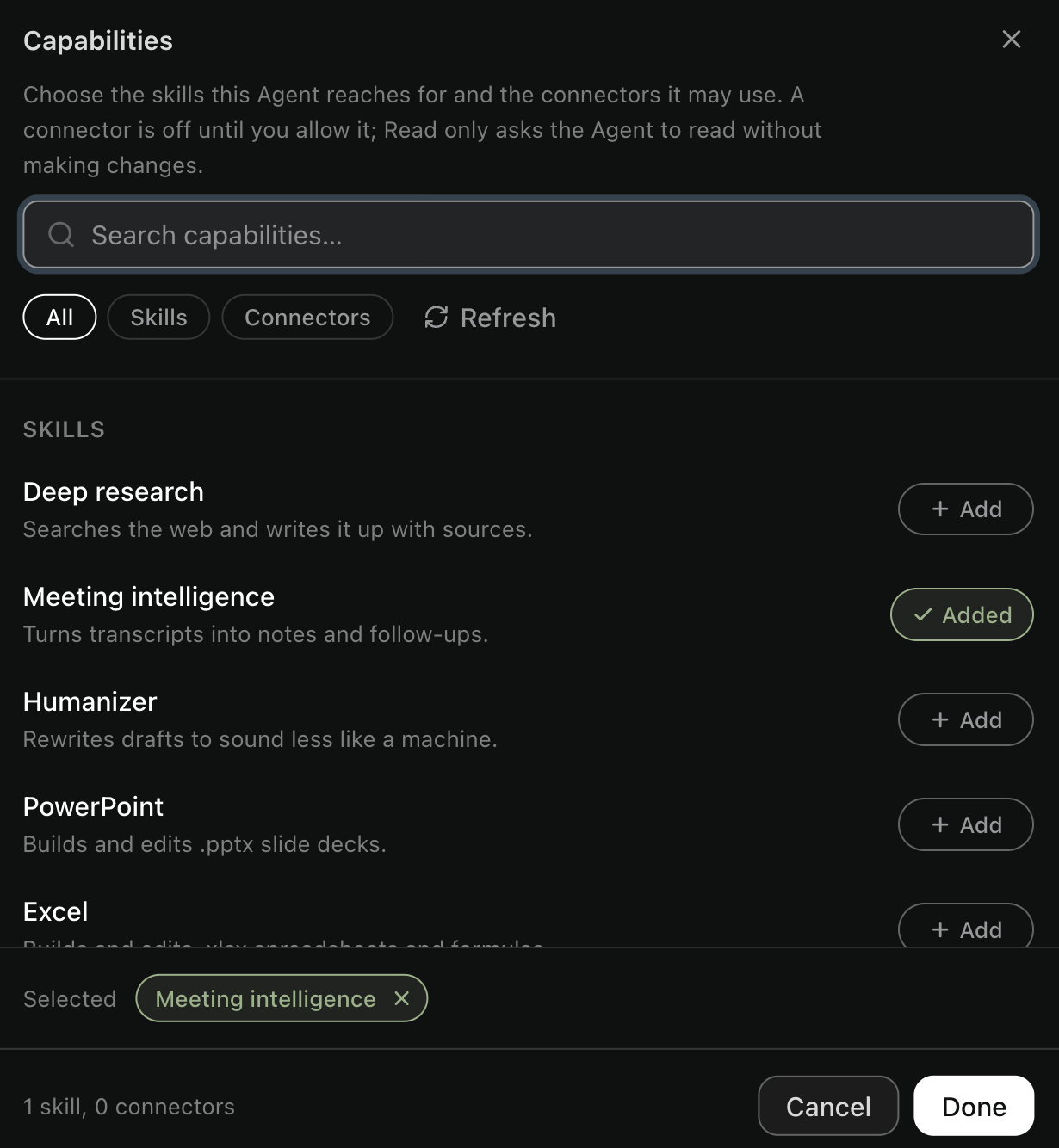
Skills help an Agent do particular kinds of work, such as reading a PDF or making a spreadsheet.
Connectors let it use apps you connect, such as Google Workspace. A meeting assistant working from pasted notes may need no connected apps.
Choose what the job needs. You can add more later.
Grant app access
Connect your account under Plugins → MCP, then select the connection in the Agent's setup.
| Choice | What it means |
|---|---|
| Allowed | The Agent can use the connection, subject to your account access and approval rules |
| Read only | It can use tools identified as reads |
| Not selected | It cannot use that connection through its app tools |
A newly added connection defaults to Allowed. Existing read-only choices stay in place until you change them. Selecting no connections grants none.
For an email assistant, reading mail and saving drafts need different access. Saving a draft is a change to Gmail.
Ask for drafts when you want to review a message before anyone receives it. Check Approvals and permissions to choose when tools should ask.
Why does an allowed app still need setup or approval?
Allowed selects an app the Agent may use. You still need to connect your account, and the requested action must pass its permission rules.
A saved tool deny or an organization restriction still applies. Changing the Agent's instructions cannot supply missing access.
Choose its response style
High gives more room for careful reasoning. Fast favors quicker responses.
Set this in the Agent's setup. Its main conversation follows that choice.
Add useful references
Use Knowledge in the editor for a document the Agent should keep as a reference, such as a meeting checklist or writing guide.
The attachment is a saved copy. Replace it when the reference changes. See Files and memory.
Names, instructions, and conversation starters
The first line of the instructions appears as the Agent's short purpose in lists. Expand Instructions to read the full text.
Names must be unique in your library and can contain up to 64 characters. Instructions allow 4,000 characters.
You can add three conversation starters, each up to 200 characters. They are suggestions to select, not messages that run automatically.
Which skills are selected by default?
An Agent created through the form starts with all available skills. You can choose fewer, or turn them all off. An unrestricted selection includes skills installed later.
Manager and Fluso starting points choose skills for the job. Check the saved selection.
Custom skills are shared workspace files. Editing one can affect other Agents that use it.
When saved changes take effect
Your main conversation uses the changed setup on its next turn. Work already running and existing separate sessions keep their earlier setup.
Changing Project does not move existing conversations or files.
If another tab changed the setup first, Fluso asks you to review the latest version before saving. Check those changes before trying again.