

Share an Agent
Give someone a copy of an approach that works for you.
Once an Agent helps you reliably, you can share its setup with someone else. They get their own copy to try and improve.
Your conversations, routines, project files, and connected account credentials are not included.
Choose what to share
- Open the ⋯ menu on the Agent's row in the sidebar.
- Select Share.
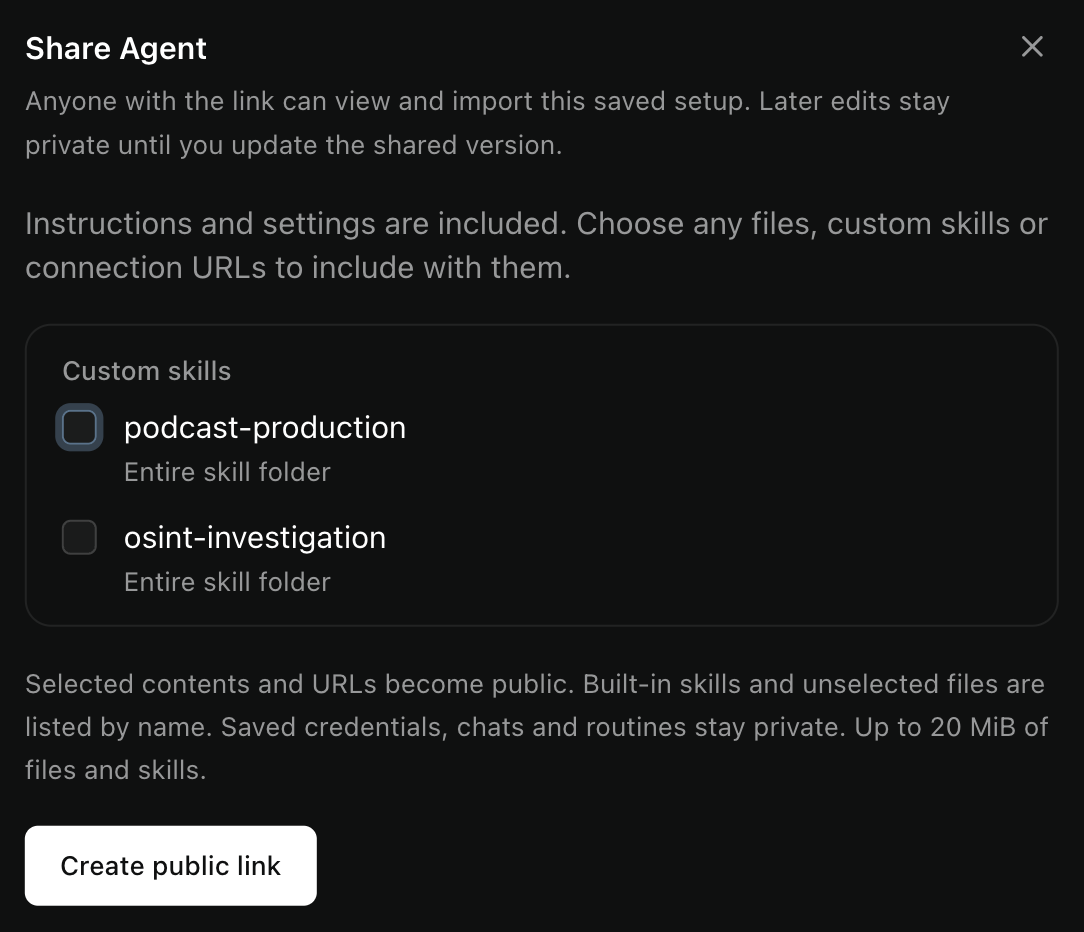
- Choose any reference files, custom skills, or custom connection URLs to include.
- Select Create public link.
Instructions and settings are included. Anyone with the link can read the published setup and import it.
Read the selected files and skill folders before publishing. Check connection URLs too: a URL can itself contain private information or an access key.
Update or close the link
Private edits stay private until you select Update shared version. That publishes your current setup at the same link.
Stop sharing closes the link. Deleting the Agent also closes it. Copies people already imported remain theirs.
Use someone else's Agent
Open the share link to read its setup. Import Agent opens Fluso, where you choose a name and project. Get Fluso helps if the app is not installed.
You can also paste the link under New Agent → Import from a shared link.
Manager helps finish setup with your own accounts. Try a real task before scheduling it.
What happens to files, skills, and connections?
Selected reference files and custom skill folders are copied. Imported custom skills get distinct names so they do not overwrite yours.
Built-in skills use your installed versions. Reference files the owner did not include are listed by name, so you know what is missing.
Selected custom connections include their definitions and URLs, not stored authentication. You still authorize your own accounts. Some public connections that need no sign-in can be registered during import.
Selected files and skill contents share limits of 20 MiB and 512 files. Symbolic links and custom connection URLs with query parameters cannot be included.
What if the shared setup changes?
If it changes while you review it, Fluso asks you to review the new version before importing.
A closed link cannot be imported. An older incompatible link may need its owner to publish it again.
Make a copy just for yourself
Use Duplicate in the Agent's actions menu. It copies the setup and knowledge files into your library, with no conversations or routines.
You can star a useful Agent or change its appearance from the same menu.
For working files you want to pass along separately, use project export.